Archive for iOS

Foap IOS App: Sell Stock Photos on Your iPhone

If you are a photographer it is likely that you have at least considered signing on with a microstock agency to sell your stock photos. Some photographers make a very good living selling stock photos. But how many of us make a living selling stock photos from our iPhones? Me either. But is is possible to generate some income from photos taken on your iPhone or other smart phone?

The folks at Foap say they can make that happen. The concept is simple. Download the Foap app and sign up for an account. Then upload your photos through the app. Once your photos are approved they will be added to the Foap website where they may be purchased for $10 per download. You get $5 per purchase and Foap keeps $5. It’s pretty much that simple.

So are you ready to strike it rich by selling photos on your iPhone? My guess is that you will not. But could you generate some extra income for your iPhone photos? Perhaps. My job is not to critique the concept, but to review the application.

Read More→

Discover the World From Your IOS Device with Trover

I love looking at photos. Places, people, still life, abstract…I enjoy seeing how others see  the world through their camera lens. Perhaps that’s why I enjoy Instagram so much. Where else can you discover the world from the comfort of your own home? That’s why I also like Trover.

With Trover, you can discover new places everyday, and post your favorite photos from the places you have been. I am just discovering this great app, but have had a good time seeing new places and recognizing photos from places that I have been.

When you post a photo, or a discovery as they call it, you may do so either by taking it from your camera or choosing from your photo library. For instance, the photo at right is one that I took out my window at the Grove Park Inn in Asheville, NC. I was able to select the location from a list. Had my location not been listed, I could have added my own. You may also add details, tips or tags to help others enjoy your discovery. You are then taken to a screen where you may post your discovery to Twitter, Facebook, or Tumblr. Once you do that, the photo is posted on Trover for others to see.

The main menu includes the following items: Home, Your Feed, Post a Discovery, Notifications, and Invites & Settings. At the home button, you will see the Newsfeed, Friend’s Discoveries, Nearby Discoveries, What’s Hot, What’s New, Featured Discoveries, Featured Trovers, Featured Lists, Places, and Search. There is so much to discover in this app that you will find so many new places that you will want to visit. Read More→

Turn Your Photo Into a Work of Art with ArtinPhoto IOS App

So much of what we see in the “New and Noteworthy” in iTunes seems to be more of the same. So it’s nice to run across something unique in the App Store. Such is the case for the ArtinPhoto IOS app. This 99 cent app allows you to add a black and white sketch within your existing photo or photo taken from your IOS device. There is a free, ad-supported version also.

It’s very easy to use and, aside from the annoying photos of random hands that hold many of the available frames, it produces some very nice results. You simply choose or take a photo. Make your selection of sketch frame, sketch type, and sketch brush. Press the “Play” button, and the app does all the work for you. You can then save your photo or share it via email. Read More→

MagicHour IOS App: Awesome FX with Ease

If you have kept up with many of my reviews you probably know that I really like vintage effects. And I have reviewed a large number of apps that provide effects. When I had almost given up on finding something new and different, I ran across MagicHour.

While I can’t say that there is anything earth-shattering about the filters in MagicHour, I simply like the way it works. Like most of the others, you may either take a photo within the app or use a photo from your camera roll. Once you select a photo (this is one I took this afternoon as a storm blew through), you go to a screen where you can move, scale, flip or rotate your photo within a square frame. Once you finalize that step you are taken to the filter section.

Here’s the neat part. You may select from lots of filters under categories of “Favorites”, “Preset”, “My Filters”, and “Download”. Not only can you use filters that are included in the app, you may also create your own filter sets and download filters from The Filter Market. Okay, so they give you a cheap app and get your dough by charging you for all the good filters? No! The Filter Market is free, as is the “Create Your Own Filter”. Let’s take a look at that feature. Read More→

Merge Colors and Shapes with Photo Mates IOS App

We all have our favorite photo effects applications; and I have reviewed a number of them here. Recently I ran across an app that works a little differently than most. Photo Mates for IOS lets you merge the shape of one photo with the colors of another. It is not simply an overlay, but works much better than you might expect.

The app is simple to use. You simply choose a photo for its shape (either from the camera or camera roll) and serve a photo for its colors (again from the camera or camera roll). The app does the rest. Your only option for output is to send it to the camera roll, and there is no way to make adjustments.

The app is free and ad supported. You may choose to remove ads through an in-app purchase.

The key to its use is to find a photo with a simple shape and another with vibrant colors. Using a busy photo for a shape will make it look overdone, as will using a photo with lots of colors. The app can be a bit frustrating in that you cannot select or sample the colors that you wish to use. So you might have a picture with a clear blue sky and the app samples a darker area in the shadows.

Read More→

Smugmug’s Camera Awesome IOS App Lives up to its Name

So if you haven’t heard about Smugmug’s new foray into the do-it-all camera app game you simply have not been paying attention. The app has received a great deal of attention and kudos from almost everyone who has tried it. But you might say that I haven’t rushed to be the first to review the app. In fact, I might be the last guy to review it. After having downloaded it when it was first released, I have recently started using it. Camera Awesome is one of those apps that is available for free with the ability to purchase additional filters and effects within the app. Filters and effects are available from as low as 99 cents. For $9.99 you can purchase everything.

So what does the app do? It is, of course, a camera that can be used in the photo or video mode. You may select any of the following composition tools: horizon, thirds, golden, and trisec. You may also select an effect to apply with all shots. Flash may be set to automatic, on, off, or continuous. Shooting mode may be single shot, image stabilization, big button, slow burst, fast burst, timer, and interval. The camera is easy to use and works like a charm.

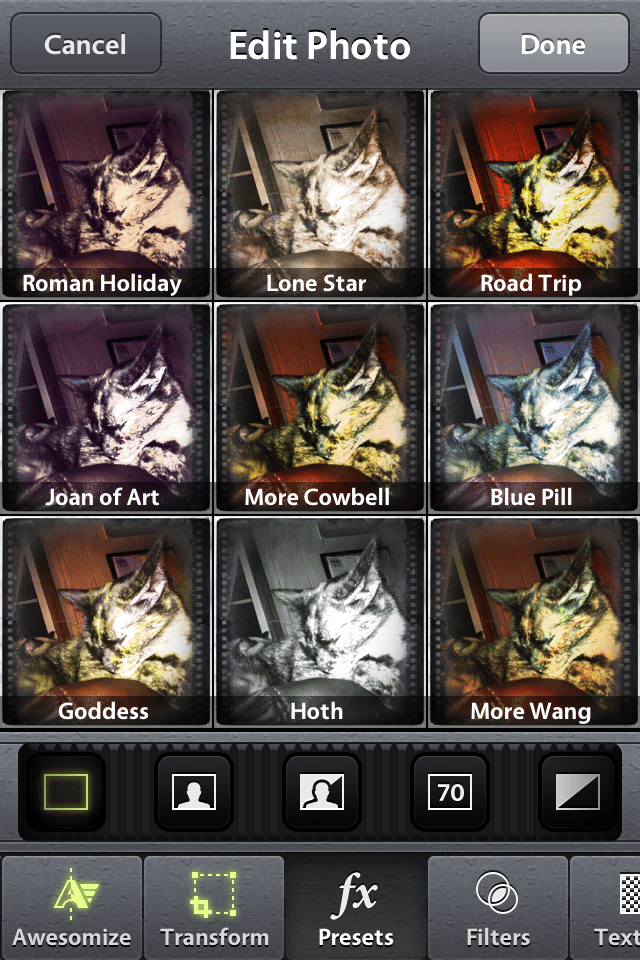
Once you make your photo, you can select effects. And what a selection! Under “Transform” you can transform your photo into a number of preset crop settings or rotate your image. The “FX Presets” menu lets you select from nine presets that are included with the app. Or you can choose from 99 optional preset effects, sets of which may be purchased from within the app. Your choices include five sets of 9 presets from Kevin Kubota, as well as others. What I like best about this part of the app is that you can easily see a thumbnail of each effect applied to your image and displayed 9 up on the screen. Under the “Filter” menu you may choose from 9 filters with come with the app and 54 more under such categories as Portrait, Vintage, B&W, and Kubota I, II, and III.

That’s plenty, right? Not if you’re awesome…

So now you get to select from Textures. You get the pattern here (no pun intended). You may enjoy 9 free textures or purchase additional ones from the following collections: Portrait, Destroyed, Paper, and Kubota I, II, and III. Then there are Frames. You guessed it! Nine free ones, and then select from the following collections: Film, White, Black, and Kubota I, II, and III.

Guess what? There’s more! There is also an “Awesomize” button. If you turn on Awesomize you can manually adjust sharpness, temperature, vibrance, and contrast. Effects are stackable, creating a huge number of possibilities.

So does Camera Awesome live up to its name? Most definitely! As a big fan of Smugmug, I am not at all surprised. In fact, if you combine the credibility of Smugmug with that of Kevin Kubota, you might expect that this might be something that is worth a look.

All the best…Mike