Archive for iOS – Page 3

Fun Collages iPhone App Provides Photo Collage Options for All

Everyone loves a collage! Well, I suppose they do. Whether everyone loves a collage or not is beyond the scope of this article, but I am pretty sure that nobody likes a collage app that is difficult to use. So let’s take a look at the Fun Collages iPhone and iPad app.

This free app is very easy to use. The main screen only contains two buttons: one to access the photos on the phone and one to take the photos for the collage. If the camera is selected, you simply take your photos one after the other. When finished, select the green “next” arrow. The app works similarly if you select photos from the camera roll. You simply select the photos you wish to use. They show up at the bottom of the screen. Then you select the green arrow to go to the next step.

You now have your photos on a bulletin board. On this screen you may rearrange, rotate, and/or resize the photos to fit your needs. You may also select backgrounds by clicking on the blue arrows on each side of the bulletin board. There are several backgrounds from which to choose, including a fall motif, a couple of beach selections, clover, flowers, and Halloween selections. Read More→

Upload Your Photos to Google+ with Google Plus Photo Importer

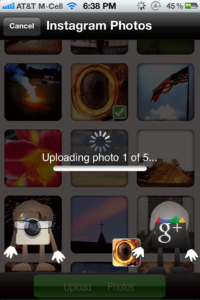
Are you one of the 40 million or so who are on Google+? If so, you might want an easy way to import photos from your Facebook, Flickr, Instagram or Photobucket feeds to one of your Google+ albums.

As you may know, Google+ has an application that allows you to instantly import your Android phone photos to your Google+ album. You’re right. Why would you know that? If you are reading this review you are likely an iPhone user.  But for what it’s worth, they do.

Google Plus Photo Importer by Dropico can let you accomplish the same thing…only better.

Just allow Google Plus Photo Importer to access your Facebook, Flickr, Instagram, and/or Photobucket accounts. Click on the appropriate icon, and select your photos to import. You then select the folder to which you wish to add your photos and choose upload. Yes, it’s that simple.

I use it to upload some of my favorite iPhone shots to an album called iPhone Photos on Google+. You can find me here on Google+.

If nothing else, it is worth downloading for the cool animation that they use when transferring the files. It costs 99 cents and is available in the iTunes App Store.

Check it out!

All the best…Mike

Maximize Battery Life with Battery Doctor Pro

There are certain apps that you buy and use and just never think about how valuable it is. Battery Doctor Pro is one such app for me. I don’t remember how long I have used this app, but I’ve used it for quite some time. What can I say? It is a valuable tool.

The app is simple to use and includes a wealth of information. For instance, on the “Status” screen, you see the percentage of battery life and how long you can expect your battery to last under various circumstances. For instance, my phone shows 84% charged, which (according to the app’s calculations) means that I can talk 6 hours on 3G, use the Internet on Wi-Fi for 9 hours, and FaceTime for 3.5 hours.

By clicking “Theme” on the menu at the bottom you may change the graphic overlaying the battery life indicator with a number of possibilities, including various colors, textures, and flags. Alternately, you can use one of your photos, as I have done in the screen shot shown here.

Battery Doctor Pro also helps you to maximize your battery life by periodically completing a full cycle charge. All you do is wait until the device runs down to 20% battery or below. You then launch the app and plug in the charger cable. The app does the rest. I usually do this about once every two weeks as I charge the phone overnight.

Read More→

Plan Your Photo Shoots with VelaClock Sun/Moon

As photographers, we all talk about the “golden hour”–that brief period of time at sunrise and sunset in which the lighting is just perfect. But what time is sunrise anyway? Or sunset for that matter? Better yet, what time will the sun set this time next month when you have the big beach wedding to shoot? What time will the sun rise in Las Vegas in mid-May? What phase will the moon be in when you are shooting that night senior portrait shoot in Asheville, NC? Okay, the truth is that I don’t know the answer to any of these questions. But I know an app that does.

VelaClock Sun/Moon app from Vela Design Group will answer each of these questions and more. Here is the gist of it. When you first open the app it will ask to use your current location. Once you do that you can use your current location or add other locations. Once you select your location, you can view a great deal of information about it. For instance, you can see when the sun will rise and set. The app will give you the astronomical twilight dawn and dusk, nautical twilight dawn and dusk, and civil twilight dawn and dusk.

Okay, I admit that I didn’t know what these terms mean, so I’m guessing that perhaps someone else might need a little refresher. Astronomical twilight occurs when the center of the sun is 12° and 18° below the horizon. If you are looking for darkness, you will find it from the end of the astronomical twilight in the evening to the beginning of the astronomical twilight in the morning (barring light pollution). Nautical twilight refers to the time when navigation at sea using the horizon is not possible. This occurs when the center of the sun is between 6° and 12° below the horizon. Civil twilight in the morning begins when the center of the sun is 6° below the horizon and ends at sunrise. Likewise, civil twilight in the evening begins at sunset and ends when the sun is 6° below the horizon. This is the time when you can best view the brightest stars and planets. Read More→

Pixlr-o-matic by Autodesk: Cool Photo Effects for iPhone and iPad

You may wonder how I come across the photo related apps that I review here every week. I get ideas on which ones to review from several sources, including the “New” and “What’s Hot” sections of the App Store. Sometimes though, I get the best leads from other iPhone and iPad users. A recent app was recommended to me by my oldest son. This week, we review Pixlr-o-matic, which was recommended to me by my youngest son, Lane. I say “we” since Lane wanted to make sure that he got due credit for his input in the process. Thus I have a co-writer this week.

Lane uses the app on his iPad and I use it on my iPhone. The process is quite simple. You simply select a photo to begin, either from your camera or camera roll. Once a photo is selected, you can select a filter from a selection of twenty-five color and black and white options. The filters are named for people, which is kind of neat. My only suggestion is that they be placed in alphabetical order so that it would be easier to find. It would be helpful to know that “Agatha” is always before “Bob” and not the other way around. You then select a lighting effect that includes anything from a simple vignette to Kryptonite. Then select from 31 frames to finish your photo.

At this point you may export to your camera roll, Facebook, or Imm.io.

You know how much I love filters and effects like these, so I really enjoy the app, which is brought to us for free from the good folks at Autodesk. I am especially impressed with the “Rain” lighting effect, which looks more like real rain than any other effect I have seen.

Read More→

Send Customized Postcards from Your iPhone with Postagram

Our oldest son was in Chicago on business recently (that’s making me feel old), and he sent us a postcard. Here’s the neat part, it was a postcard of him at the Willis Tower. Thanks to an app called Postagram, he was able to send us a personalized postcard direct from his iPhone.

So here is the scoop… You download the Postagram application and create an account. The application is free and each personalized postcard is $1.99. Currently, however, postcards are on sale for 99 cents each. It is as easy as using a photo from your album, Instagram, or Facebook. You move and scale it to a square shape. You can select a profile photo that will show up on your postcards, and write a personalized message. Read More→