Archive for iPhone – Page 3

Color Instagram Text + Adds Oomph to Your Instagram Messages

If you like Instagram like I do you sometimes need to share a typed message with your friends. In the past we might have used Notepad to write the message, take a screen shot and upload to Instagram. But Color Instagram Text + will change the way you do that. It’s very simple to operate and brings some pizazz…allure…oomph to your text-based messages.

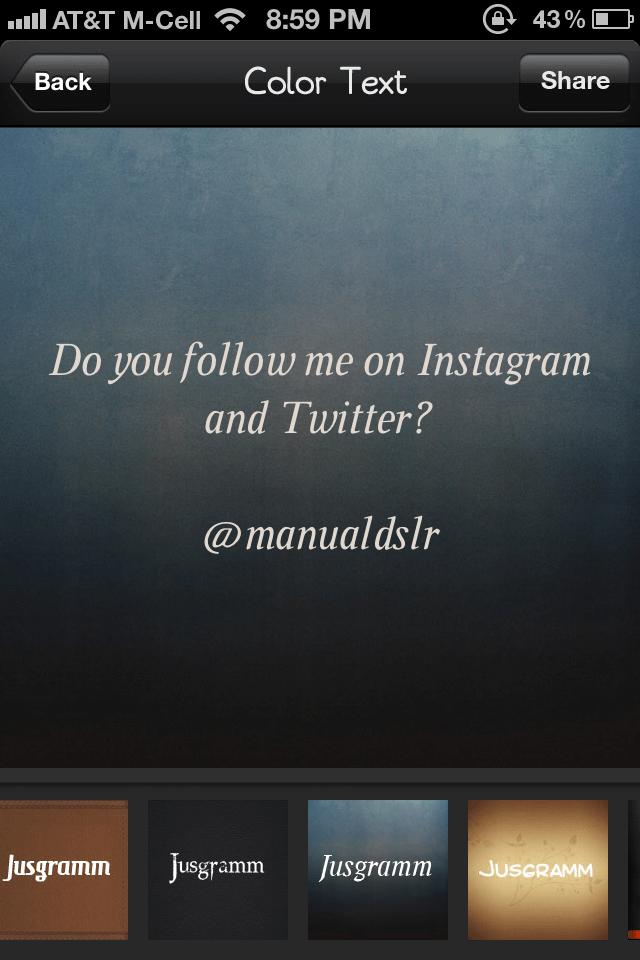
Once you open the app you will see a simple box. Type your message and click “Next”. Here you are able to select your background/font combination. There are 13 options included and theme packs may be purchased in the app. The app is free but theme packs may be purchased for 99 cents to $1.99. Once you select your background you simply click “Share” to import into Instagram, copy and iMessage, save to photo album, or email.

1. Compose message. 2. Select effect. 3. Share. It is that simple.

If you follow me (@manualdslr) on Instagram or Twitter you will likely see some of these soon. Hope you enjoy!

All the best…Mike

Green Screen-Like Effects with VFX Studio IOS App

What do you do while you have a long wait in the airport? Angry Birds? Maybe. But what if you want to be a little more creative? Well, quickly download VFX Studio and have some fun. That’s what I did recently while waiting at Dallas Love Field for my flight back home.

The app is very easy to use. You simply select a photo from your camera roll or take a photo within the app. Once you do so, you simply select the “Tools” menu from the left side of the screen. From there you may select “Add Fx” to select the item you would like to add to your photo. Current selections include animals, blood, bones, bullet impacts, cracks, fire, light flare, lasers, lightning, makeup, scars, smoke, shadows, weather and weapons. Once you add the effect, you may place, size, rotate, or flip the effect. When you finish, you can flatten to merge the layers and save to your camera roll.

The app costs 99 cents and is worth it for lots of fun. But there is a serious use for it as well. While waiting in the airport I used the app to mark a location on a photo using the shadow tool. This is a fun app with some serious applications as well.

This is one you might want to check out. Because you never know when you might want to add a dinosaur to your Caribbean island theme. And I’ve found that it is much easier to use this app than it is to shoot a dinosaur in front of a green screen. Seriously. Have you ever tried it?

So download and have some fun with it.

All the best…Mike

Get Your Next Photo Assignment with Rawporter IOS App

The news media has indeed changed over the past several years. While newspapers have had stringers for many years, the advent of quality cameras in our phones has made capturing newsworthy photos or videos easier than ever. And with Rawporter, you have an outlet to sell your work.

Here is how it works. Download the app and set up an account. Once you do so, you are part of the Rawporter team. You can participate in two ways. First, you may  upload photos and videos that you have already taken and make them available for use by Rawporter users. Second, you may respond to assignments that are sent out by news outlets and others.

So what is Rawporter all about? According to their website, “Rawporter connects media outlets large and small with everyday people who are willing to capture video and photos for them. Our simple App makes it easy for you to earn a little extra cash for being in the right place at the right time. Plus it protects your rights, ensuring you get the recognition you deserve.” Payments are made to the photographer by Paypal.

You can take videos and photos within the app, but you may also upload photos and videos taken with other devices. While the concept is a good one, I found that the website is much easier to navigate than the app. The app is handy for uploading videos taken with your iPhone or checking for assignments,  but can be quite cumbersome when trying to perform other tasks. This entire service is still in the beta version, so I expect that improvements will be forthcoming.

The app, of course, is free as is the account. So if you are game for making some money for being in the right place at the right time, you may find this useful. If you want to learn more, check out the Rawporter website and be sure to  check out episode 50 of Digital Photography Cafe.

So if this sounds interesting, check it out and see what happens.

All the best…Mike

Create HDR-like Effects with HDR FX for iPhone and iPad

HDR FX is a really cool iPhone and iPad app that lets you create some very attractive HDR-like effects. For those of you who are not photography enthusiasts, high dynamic range (HDR) photography involves taking multiple exposures of the same scene using different shutter speeds. If done properly, combining these multiple exposures will result in optimum exposure across the entire photo. This photography process has become so popular that the native iPhone camera now comes with an HDR option.

But HDR FX takes it to another level. While it is not actual HDR, this app does a nice job simulating HDR with filters.

The app is easy to use. The main screen contains only three options: camera, camera roll, and information. The camera option simply opens the existing iPhone camera, and imports the photo you take into the app for processing. If you select the camera roll you have an option to load from the camera roll or from Facebook. Once you select a photo you may use the crop tool in the center and click the check mark to select. From here you are taken into the HDR Lab, which includes 42 options divided into three categories: Scenery, Sky, and Ground. Once you select one, you may make adjustments, including manual adjustments, save to the camera roll, or send the image to other applications.

According to Jellybus, Inc. this $1.99 application has had more than 2 million downloads. I can see why. There are some great filters and it is super easy to use. I hope you enjoy!

All the best…Mike

Make and Save Lighting Diagrams with Sylights IOS app

Do you ever make lighting diagrams? Perhaps you are thinking about how the light will look in the studio, or maybe you want to be able to save a lighting setup that you liked. Regardless the reason for using it, Sylights iPhone and iPad app makes it easy to design lighting diagrams.

Simply click on the + symbol to add a new lighting diagram. At this point you will see a grid in the background, a menu bar at the bottom with options for “properties”, “discard” and “save”. At the top of the screen is where the magic happens. Simply click on the icon at the top of the page to see a wheel of options revealed. Here, you may select from backdrops, umbrellas, cameras, subjects, beauty dishes, reflectors, strobes, gels, softboxes, hair lights, gobos and other light sources. To select any of these simply tap on the item you want. From there, you may select the particular items you need.

Dragging items onto the screen is very easy to do. You may adjust the location and rotation of the components. From there you are ready to create.

It is easy to create and save lighting diagrams using this free application. If you ever make lighting diagrams, I encourage you to check it out.

All the best…Mike

Full Featured Photo Editing with PhotoToaster IOS App

As you know, there are tons of apps out there that make your photos look cool. But some apps make your photos look cooler than others. PhotoToaster is one such app. I really like the way that you have access to all the main menu items from one spot. Menu items include “Recent”, “Photo Library”, “Camera”, “Clipboard”, “Tutorial”, “Email Support”, “Tips”, “Products” and “Follow ECP” on Twitter.

Once you take or select your photo, you have a lot of options for “toasting” your photo. When you select the tools menu from the top of the app, you may crop, rotate, straighten, or reduce noise. Cropping for apps like Instagram is easy, since there is a square option. But the magic really happens on the menu at the bottom of the app.

The menus at the bottom of the app allows you to add borders, texture, vignette, effects, and adjust exposure, temperature, contrast, and much more. The world icon on the bottom left provides global presets that let you quickly select multiple adjustments with one touch. There are lots of great selections under the headings “Basic”, “Deluxe”, and “Supreme”. You can also add your own presets or utilize your recent presets.

I really like that you have “back” and “forward” buttons that let you toggle between choices. And there are lots of options for exporting. You may save to your photo library, send by email or SMS, or post to Facebook, Flickr, Tumblr, Instagram, and Twitter. You may also copy to the clipboard or send to Airprint. If that weren’t enough, there is an icon that allows you to send the photo to other apps. On my phone, I can send it to Halftone, King Camera, HDR FX, and FX PhotoStudio. And there is a button with which you may find more apps that are compatible with PhotoToaster. Wow!

This $1.99 app is very full featured and provides a lot of great options to fuel your creativity. This has become one of my favorite apps and one that is worth a try. If your photos don’t look awesome after using PhotoToaster, then maybe you should take up kazoo playing or collecting four-leaf clovers or something besides making pictures.

Hope you enjoy. All the best…Mike