Archive for iPhone – Page 2

Tamron Lenses and How-To IOS App Provides a Wealth of Info.

I usually do not review apps that are basically advertisements for a particular company, except when the app contains useful content. Such is the case with the Tamron App. So if you were a lens company what would you include in your app? Don’t waste your time thinking about it because you won’t think of everything that Tamron included. Here’s the rundown:

  • Tamron Products – This is the one you should expect. Select from menus for All-in-One Zooms, Fast Zooms, Wide & Tele Lenses, and Macro Lenses.
  • Local Events – Shows events in which Tamron participates.
  • How To Videos – This section includes a good number of videos regarding shooting with Tamron lenses.
  • How To Articles – Likewise, this section contains a good selection of articles on anything from “Shooting an Outdoor Concert” to “Using Lenses for Video”.
  • Photo Contest – Includes details for any contests that Tamron is running at the time.
  • Get Social – Provides links to Tamron on Facebook, Twitter, Tamron Blog, My Photo Exhibits, and Flickr.
  • Get ENews – Where you can sign up for the Tamron E-News.
  • Find A Dealer – Gives you the opportunity to find a dealer using Google Maps.
  • Rebates – Shows current rebate offers.
  • Scan – This is a surprising one. A QR Code reader is included as part of the app.
  • Read More→

InstaCollage Free IOS App Gives You More, More, More.

“Please sir, I want some more.” Even though he had a great British accent, and the whole play was named after him, that question didn’t get Oliver anything but trouble. But your luck is going to be much different when you download InstaCollage Free.

There are a lot of frame and collage tools out there. Take your pick. There are some good ones. But this one comes with what our neighbors in Louisiana call lagniappe–a little something extra. So here is what you get!

First of all, you get a number of collage frames. At the top are 22 collage choices and at the bottom are 22 frame choices. Once you have selected an arrangement and frame you may select your photos by simply clicking on the empty frame and selecting your photos. Once this is done, you can adjust the look of the frames with the “Style” menu. You can add text using the “Text” menu and add a number of stickers using the “Stick” menu. If that were not enough, you may click on the “Effect” menu to select from 8 effects, including sharpen, blue, polaroid, bright, and others.

Finally, you may share your photos by saving to the camera roll, sending via email, or posting to Facebook, Twitter, or Instagram.

So there is a lot here to like. The only thing that I didn’t like is that the developers did not pass up the opportunity to try to sell you the InstaCollage Pro version, which includes 60+ photo frames, 45+ frame layouts, 140 stickers, etc. Yes, I saw it so many times I have that part memorized. Okay, it’s not that bad, but they do put on a pretty hard sell. Read More→

InstaCC Photo Challenges and Calendar View are Winners!

By now everyone has heard the news that Facebook has purchased Instagram for a cool billion dollars. While I have not heeded the call of the Facebook sirens (al a Homer’s Odyssey), I have slurped the cool sugary nectar that is Instagram. Okay, I am piling it on a bit thick, but that’s only because I am paid by the word (or not).

Back on topic. I do enjoy Instagram. Where else can you vicariously live the life of a complete stranger through a series of photos the size of a… Well, the size of a 1 and 7/8 inch square. Okay, you can’t really live their life, but you can look at photos of what they are having for dinner and see what the wing of the airplane they are on looks like out the window. Yes, we have ALL taken that picture.

So now that we have taken the picture of the wing of our plane or what we are having for dinner, what do we do with it? I have reviewed dozens of great apps for making your iPhone photos look even cooler than ever before. But InstaCC is a bit unique as it displays your photos in a camera view and prompts you to participate in photo challenges daily.

Here’s how it works. You log in with your Instagram username and password and allow InstaCC to have access to Instagram. You can post photos using the built in camera feature in the app. If you are working through a photo challenge, you will be given a choice whether to take a snapshot or to take a photo for the photo challenge. If you take the photo challenge your photo will be automatically hashtagged, which is important when you start to look at challenges. Read More→

Merge Colors and Shapes with Photo Mates IOS App

We all have our favorite photo effects applications; and I have reviewed a number of them here. Recently I ran across an app that works a little differently than most. Photo Mates for IOS lets you merge the shape of one photo with the colors of another. It is not simply an overlay, but works much better than you might expect.

The app is simple to use. You simply choose a photo for its shape (either from the camera or camera roll) and serve a photo for its colors (again from the camera or camera roll). The app does the rest. Your only option for output is to send it to the camera roll, and there is no way to make adjustments.

The app is free and ad supported. You may choose to remove ads through an in-app purchase.

The key to its use is to find a photo with a simple shape and another with vibrant colors. Using a busy photo for a shape will make it look overdone, as will using a photo with lots of colors. The app can be a bit frustrating in that you cannot select or sample the colors that you wish to use. So you might have a picture with a clear blue sky and the app samples a darker area in the shadows.

Read More→

Caption Card Lets You Add Text to Your Images

Do you ever need to send a photo along with a message? Or perhaps you want to spice up your Twitter messages with a multiple lines of text, different fonts, and various font sizes? If so, Caption Card will make it very easy to do so. It is as simple  as one, two, three…

–

  1. Take a photo in app or select a photo from your camera roll.
  2. Click on the Text icon to add your text. Type your message. Select the font and color. And click Done when you are finished. A simple swipe with your finger will allow you to move the text to any position on the screen. Doesn’t look exactly right? No problem. Tap on the text and you are given the choice to delete or edit.
  3. Once you get it just like you want, click Export to send via email or save to your photo library.

The app is free and ad-supported. You may upgrade with an in-app purchase for $1.99

This app is as simple as it is functional–definitely one to check out.

Hope you enjoy! All the best…Mike

Smugmug’s Camera Awesome IOS App Lives up to its Name

So if you haven’t heard about Smugmug’s new foray into the do-it-all camera app game you simply have not been paying attention. The app has received a great deal of attention and kudos from almost everyone who has tried it. But you might say that I haven’t rushed to be the first to review the app. In fact, I might be the last guy to review it. After having downloaded it when it was first released, I have recently started using it. Camera Awesome is one of those apps that is available for free with the ability to purchase additional filters and effects within the app. Filters and effects are available from as low as 99 cents. For $9.99 you can purchase everything.

So what does the app do? It is, of course, a camera that can be used in the photo or video mode. You may select any of the following composition tools: horizon, thirds, golden, and trisec. You may also select an effect to apply with all shots. Flash may be set to automatic, on, off, or continuous. Shooting mode may be single shot, image stabilization, big button, slow burst, fast burst, timer, and interval. The camera is easy to use and works like a charm.

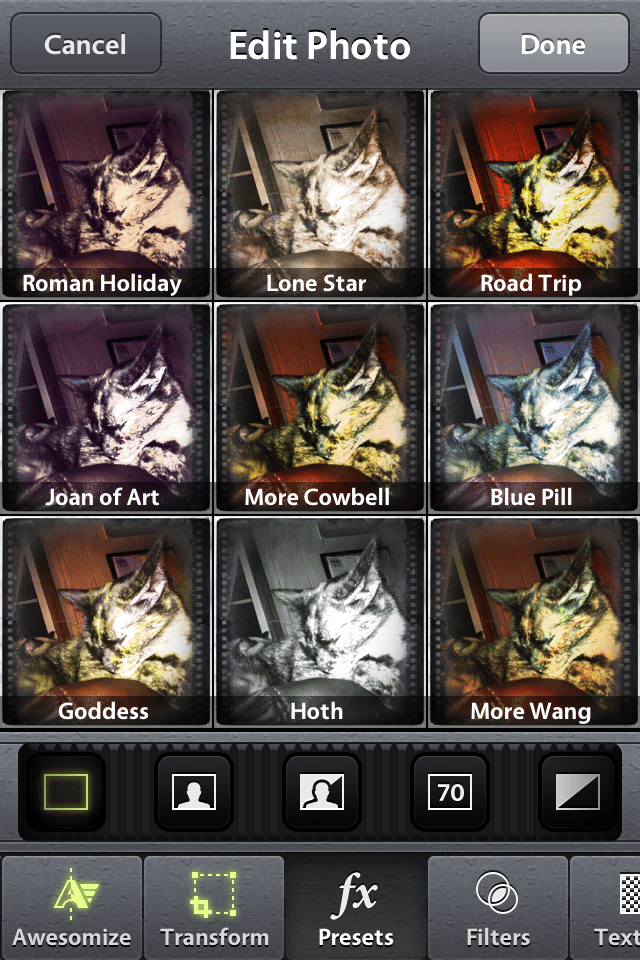
Once you make your photo, you can select effects. And what a selection! Under “Transform” you can transform your photo into a number of preset crop settings or rotate your image. The “FX Presets” menu lets you select from nine presets that are included with the app. Or you can choose from 99 optional preset effects, sets of which may be purchased from within the app. Your choices include five sets of 9 presets from Kevin Kubota, as well as others. What I like best about this part of the app is that you can easily see a thumbnail of each effect applied to your image and displayed 9 up on the screen. Under the “Filter” menu you may choose from 9 filters with come with the app and 54 more under such categories as Portrait, Vintage, B&W, and Kubota I, II, and III.

That’s plenty, right? Not if you’re awesome…

So now you get to select from Textures. You get the pattern here (no pun intended). You may enjoy 9 free textures or purchase additional ones from the following collections: Portrait, Destroyed, Paper, and Kubota I, II, and III. Then there are Frames. You guessed it! Nine free ones, and then select from the following collections: Film, White, Black, and Kubota I, II, and III.

Guess what? There’s more! There is also an “Awesomize” button. If you turn on Awesomize you can manually adjust sharpness, temperature, vibrance, and contrast. Effects are stackable, creating a huge number of possibilities.

So does Camera Awesome live up to its name? Most definitely! As a big fan of Smugmug, I am not at all surprised. In fact, if you combine the credibility of Smugmug with that of Kevin Kubota, you might expect that this might be something that is worth a look.

All the best…Mike