
Archive for watermark

OSXcellence – Photora Review

When you take a photo, what do you do with it? I imagine you upload to your Mac, tweak it in iPhoto/Aperture/Lightroom/Photoshop, and then share it in some way – either digitally or in print. Most of the time, however, you will share images digitally. But what happens when you prepare your images for sharing online? You’ll no doubt resize them, and many photographers like to protect their images with a watermark. It is these two functions that Photora aims to make simple and easy, but is it just an unnecessary step in your workflow?

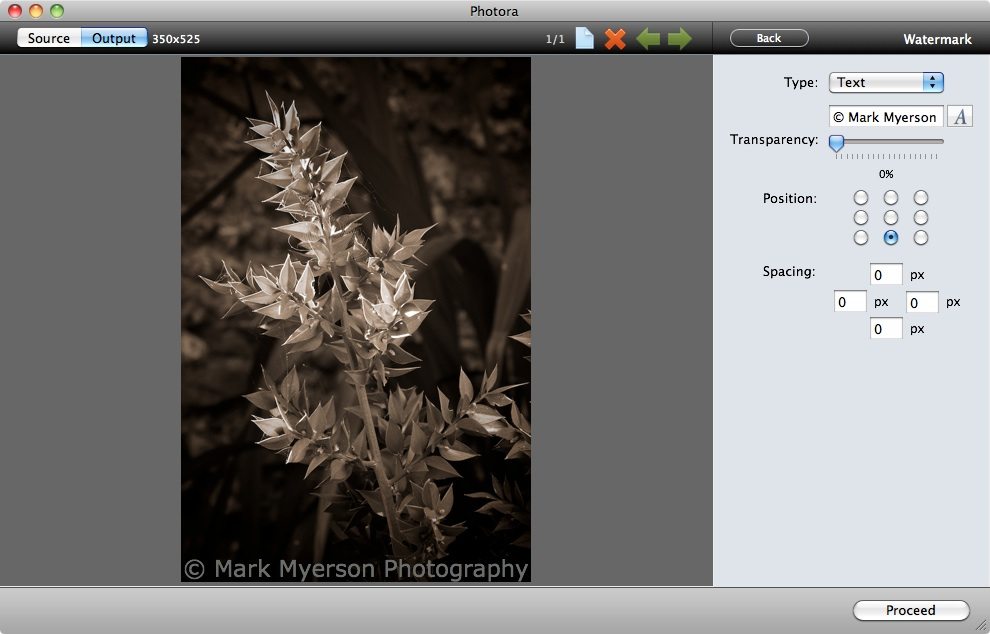
Photora keeps things simple; images are easily inputted via drag-and-drop, and then a minimal palette of clear controls awaits you. These are resize, watermark (both of which may be turned on and off) and file type selection.

The resize function is controlled either by percentage of original size, or by fixed width, height or size. The watermarking function is also simple, but it gets the job done. Watermarks can be text or images, and their transparency is adjustable. You can centre your watermark in one of nine positions (top-left, top, top-right, middle-left etc). The opportunity to adjust the precise location of your watermark is provided by optional spacing.
Read More→

OSXcellence – cf/x photo Review

I have reviewed a number of simple editing apps in this column, many of which are effects-based. But suppose you don’t want to make your picture look like a badly exposed polaroid, yet still would like the simple operation that apps like CameraBag 2 have? Today’s app is cf/x photo, which aims to fit just this description – but will it fill the niche?

I hadn’t heard of this app, or its makers – cf/x software – before stumbling upon photo in the Mac App Store. On initial inspection, photo seems to follow the trend of sleek and simple effects/edit apps. Unlike the standard formula in this genre, however, photo is not about messing around with your pictures (even though a few basic effects filters are included). The aim of this app is summed-up nicely by its makers: “CROP. TWEAK. ENJOY.” As a result, the focus in photo is practical functions, like cropping and watermarking. You can also create classy frames of any colour you desire, and put text onto the image as well.

The crop function includes a number of aspect ratios, as well as the ability to crop at an angle. Given that you have a Mac (on which photo runs), you automatically have iPhoto, which can perform these crop functions itself. The need for such a cropping function in photo, then, is somewhat lacking.

The effects palette is very modest in photo, and to be honest, you’d do better to download a free specialist app if you want to style your image (like Pixlr-o-matic). Hidden within this menu is access to basic exposure and colour editing tools, although again, iPhoto would probably do this job better.The frame options in photo, whilst being basic, are very useful, allowing the easy addition of a coloured border, with one or two-colour options available. The width of the frame is adjustable, but unfortunately, making the frame wider makes it encroach on your image more, rather than expand outwards – a disappointing feature.

Text can be added in one of three segments of the image – top, middle and bottom – although the text actually sits somewhere near the top of each of these segments. The placing of these is strange, and makes this tool useless in comparison to the Mac’s inbuilt app, Preview, in terms of annotation. Read More→

OSXcellence – PhotoStamp Review

Anyone who shares their images online does so at the risk of their images being downloaded and used by pesky image thieves. Professionals, of course, aim to prevent this by watermarking their images, but considering it is such a routine thing, there are only a few Mac applications that deal with this task well.

I watermark my images using Softmatic’s Photostamp, now a Mac App Store exclusive, priced at £5.99 ($9.99 for US readers).

PhotoStamp has a very simple workflow, starting with image selection, then watermark selection or design, and placement, and lastly, image output settings.

Image selection is as easy as it’s possible for it to be – click to browse, or drag and drop.

To watermark, you can type text into the box, select an image to use, or use a predefined watermark; these can be added to, so a previously used text watermark can be selected. Text colour, font, size, rotation and opacity are all adjustable, in addition to being able to select one of nine alignments for the watermark. It is a shame that you can’t freely place a watermark as if it were a layer in Photoshop, but personally, I haven’t had a problem with this.

On the next page are the outputs options. Without going in depth, I will mention the fact you can output images as jpg, tif, bmp and gif files, as well as being able to resize images, set file names, and even produce thumbnail copies of the outputted images.

Read More→

Easily Watermark Your iPhone Photos with Any Mark

ANY-MARK-APP-ICONJan 24, 2010 – iPhone photography has become very popular and there are a ton of apps out there that allow you to enhance and easily share your images. If you’re concerned about protecting your images, a new app called Any Mark will add text, image and logo watermarks to your photos. You can rotate, resize, flip, change text colors and fonts, adjust transparency then save the image and share it via email or uploading to Facebook and Twitpic. Any Mark is available for download in the iTunes Store for and introductory price of $0.99.

Any Mark iPhone App Screen Captures

–