Archive for photo

WordFoto: Your Photos + Stylized Text = Awesomeness!

When you review IOS apps you tend to experience a sense of deja vu in that so much of what you see has already been done, and done, and done… So finding new and exciting apps to share with the Current Photographer readers becomes progressively more difficult as time goes on, and so much of what I see is just a different twist on something that has already been done–and sometimes overdone. After all, my goal in writing these reviews is to share with readers apps that I actually use. And frankly, I don’t use seventeen apps that do the same thing. I select my favorite and use it.

WordFoto is not the first app of its kind that I saw. There are others out there, but I was not satisfied with them enough to actually use them for my own photos. But finding another such app ultimately led me to WordFoto.

WordFoto allows you to take or select a photo, add one or more words, and it works its magic by combining the words and photos in an attractive format. Here is a photo that I took in the app while writing this article. Yes, I stopped just now and took it, cropped it within the app, and uploaded it to Dropbox from my iPhone 4. Then I went into the “Words” menu in WordFoto and added a new word set that contains the words, “Zeke”, “cat”, and “meow”. I selected that set then went to the “Style” menu. For this photo I selected “Classic Color” and it is ready to export to the camera roll. Read More→

OSXcellence – LightFrame Review

Great images will always be pleasing on the eye, but the overall impression a viewer will get is dependant on how that image is presented. This includes factors such as whether the image is digital or on paper, editing quality, but also framing. Whilst you can just go out and buy a frame for printed pictures, digital images need the help of some software to make them stand out. LightFrame uses OSX’s in-built textures to superimpose digital frames around your pictures, but is it a presentation improver or degrader?

The first thing I noticed about LightFrame is how dodgy the viewing controls are. I tried to zoom in and out of the picture, but just ended up with a semi-zoomed-in view which was heavily distorted – not a good start. Loading up the tools in LightFrame is easy enough (assuming you guess that the “scenes” button opens up the tool palette), as is the process of using the tools themselves. Alongside the framing options, LightFrame has a number of other features, such as the ability to add a caption or sprite to the image, plus image cropping and resizing.

The textured frames in LightFrame are terrible, looking like something grabbed from a gaudy mid-90s web page. On the plus side, the plain colour frames look okay, and LightFrame’s in-built shadow creator is pretty nifty, allowing you to select the angle of light. In addition, LightFrame can create borderless frames (like the clip ones); that is, it can create the shiny effect of its real-life counterpart.

The rest of the functions in LightFrame work well enough, although the list of apps out there that will perform the exact same functions (many being free, I should add) is the size of several directories. It is also worth noting that many of LightFrame’s rivals work a great deal better. Read More→

OSXcellence – Shoebox Review

It is a given that most photographers who are Mac users will, at some point, use iPhoto to organise their images and perform simple edits. And whilst iPhoto is a polished product, it is by no means perfect. Shoebox, by KavaSoft, is a simple alternative to iPhoto, but is it realistic as a replacement?

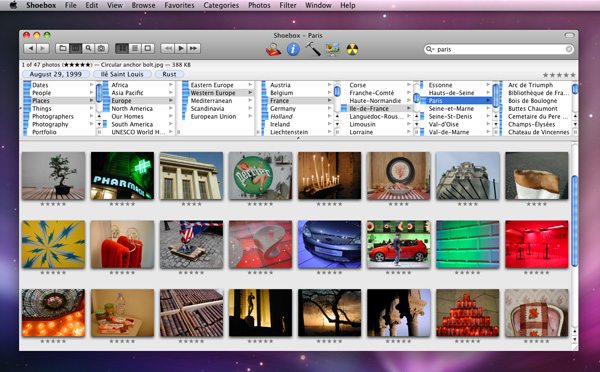
Shoebox isn’t stunning to look at, although controls aren’t cluttered and the app is very usable as a result. The simple nature of Shoebox also lends itself to quick processing, and indeed, Shoebox doesn’t suffer from slowdown.

Shoebox works differently from iPhoto; rather than creating its own library, to which images are imported, Shoebox simply scans folders on your Mac, and locates the images within these folders – thumbnail previews of the images are then displayed within Shoebox’s interface. By selecting images, you can add them to a category, give them a rating or change their name, as well as edit or view a plethora of other metadata.

One area in which iPhoto probably outperforms Shoebox is organisation. This is less to do with a lack of organisation features, and more to do with accessibility and ease of use of these features. Generally speaking, however, as an image sorter, Shoebox performs well and due to its minimal operation, it runs very fast. Despite having 4GB of RAM in my Mac, I still find iPhoto slowing-down from time to time, whereas Shoebox always seems to be snappy.

Like iPhoto, Shoebox has a slideshow feature. It isn’t as customisable as iPhoto, but as a way of displaying your pictures, it works fine. This is certainly an area where Shoebox can improve in future versions, however.

Read More→

OSXcellence – cf/x photo Review

I have reviewed a number of simple editing apps in this column, many of which are effects-based. But suppose you don’t want to make your picture look like a badly exposed polaroid, yet still would like the simple operation that apps like CameraBag 2 have? Today’s app is cf/x photo, which aims to fit just this description – but will it fill the niche?

I hadn’t heard of this app, or its makers – cf/x software – before stumbling upon photo in the Mac App Store. On initial inspection, photo seems to follow the trend of sleek and simple effects/edit apps. Unlike the standard formula in this genre, however, photo is not about messing around with your pictures (even though a few basic effects filters are included). The aim of this app is summed-up nicely by its makers: “CROP. TWEAK. ENJOY.” As a result, the focus in photo is practical functions, like cropping and watermarking. You can also create classy frames of any colour you desire, and put text onto the image as well.

The crop function includes a number of aspect ratios, as well as the ability to crop at an angle. Given that you have a Mac (on which photo runs), you automatically have iPhoto, which can perform these crop functions itself. The need for such a cropping function in photo, then, is somewhat lacking.

The effects palette is very modest in photo, and to be honest, you’d do better to download a free specialist app if you want to style your image (like Pixlr-o-matic). Hidden within this menu is access to basic exposure and colour editing tools, although again, iPhoto would probably do this job better.The frame options in photo, whilst being basic, are very useful, allowing the easy addition of a coloured border, with one or two-colour options available. The width of the frame is adjustable, but unfortunately, making the frame wider makes it encroach on your image more, rather than expand outwards – a disappointing feature.

Text can be added in one of three segments of the image – top, middle and bottom – although the text actually sits somewhere near the top of each of these segments. The placing of these is strange, and makes this tool useless in comparison to the Mac’s inbuilt app, Preview, in terms of annotation. Read More→

OSXcellence – Picture Collage Maker Lite Review

What’s better than a great photo? Lots of great photos on the same sheet of paper, of course; and so the collage creation app is born. Or should I say, “apps,” as this is not a niche market. Today’s app, Picture Collage Maker Lite, is one of many, but will it be this app that is the remedy for all of your multi-photo cravings?

This Lite version comes with 42 templates, including some quite elaborate, themed templates – Christmas and Wedding being examples. Additionally, there are numerous layout templates, which go beyond the usual grid, and allow your images to be arranged in a neat, but seemingly random pattern. A good variety of grid-based templates are available to use as well, if you so desire. Each of these templates has an adjustable size (although if you want to create something bigger than 1920×1440 pixels, you’ll need to upgrade to the full version of Picture Collage Maker).

The controls for making your collage are simple and well built. You can alter how the photos “lie” and the amount of the original image that is masked. There is a large library of shapes and looks available for masking, including theme-related shapes. If you fancy, text can be inserted onto the collage in the same way that photos are. Read More→

OSXcellence – The Photographer’s Ephemeris for Mac Review

Unlike many of the apps I review in this series, today’s is neither new on the market, nor new to me. In fact, I have been using it for years now, so it’s about time I shared the brilliance of The Photographer’s Ephemeris (TPE) with you.

This app provides accurate prediction of sun and moon positions at a given time, in relation to a location on the inbuilt version of Google Maps. A simple function it may seem, but for any photographer who needs to work with the sun’s light, TPE provides a unique and incredibly useful utility.

TPE has a very polished interface, with period-style visual details, providing a beautiful accompaniment to the app’s purpose. The main focus is on the Google Maps area, where you navigate to the location of your shoot – a search bar is provided at the bottom to ease this, as is a favourite locations list – and then hit the marker button to see the line of the sunrise and -set, and the moonrise and -set in that location. In addition, you can see this data for, seemingly, any date in the future, and information on the timing of the rise and set events is included on the right of screen.

Read More→